Launching I/Dispatcher
Very, Very Basic Layout
Event Information Dialog
Buttons/Notifications
Display Utilities & Help
100
This number is used by the operator to log on to Hexagon I/Dispatcher.
What is, the operator's Kronos number?
100
This is located to the right of the command line and contains icons for frequently used commands.
What is, the Toolbar?

100
The Event Information Dialog is used for this.
What is, to Create, Update and Select events?
100
This is located beneath the toolbar and contains indicator buttons that change color when information is available.
It can or cannot be moved around the screen and docked at either of the sides.
What is, the System Information Toolbar?
It CANNOT. The System Information Toolbar can only be moved to the top or bottom. NOT the sides.

100
This function key opens the Help files.
What is F1?
200
1. This command is used when one operator is relieving another operator.
2.This is the benefit of using this command versus another.
What is the Change Operator Command- "CHOP"?
By default any unviewed messages in the message queue are carried over to the new operator when executing the Change Operator command. Unviewed messages carry over to the new operator if the destination is a terminal or if the message was sent to the new operator signing on. This allows the next operator to share and continue processing the information.
200
The map can be moved out of the mainframe window and placed on a separate screen is a ____ statement.

What is, false?
200
This field is where the unit and building are added.
What is the "Loc" field?
200
This is where I look to see if a command was successful or failed.
What is, the Status/Prompt Area?
The Status/Prompt Area is located at the bottom of the mainframe window and displays prompt messages for commands that require guidance and status messages to show the success or failure of a command. For example, executing the Identify Address command displays the following message in the Status/Prompt Area.

200
This command is used to incorporate changes from parameter definitions, the database, or dialogs without having to exit out of the application. This is typically done at the request of your System Administrator or support staff.
What is the Refresh CAD command?
REFCAD –A Refreshes ALL
REFCAD -E Refreshes Events and Units
REFCAD -D Refreshes the Database and Connection
REFCAD -F Refreshes the Forms
REFCAD -P Refreshes the Parameter Settings
REFCAD –M Refreshes the Map
300
1. This command is used when you are leaving for the day and no one is taking over your console.
2. All application windows close and this dialog displays.
What is the Sign Off Command- "Signoff"?
What is the "Sign On" dialog?
300
This is where the operator ID for the individual signed on is displayed.
What is, the Title Bar?

300
It is true that the community name is added to the "Loc Info" field of the Event Information Dialog.

What is, false? The community name is added to the "Loc" field with the address, apt, bldg, and commonplace name.
300
These are located on the Event Information Dialog and activate when there is event related data available.
What are, Event-Related Command Indicator Buttons?

300
It is true that the Help files are 100% accurate and will ALWAYS work.

What is, False?
The screenshots and information in the Help Files may not reflect Lee Control’s highly configured system.
400
1. When an attempt is made to sign off, the system checks and issues warning for these situations.
2. Of these situational warnings this warning is one that we should not receive.
What are, Partial Events, Stacked Events, Messages Exist, and Only Dispatcher in Charge.....?
What is the "Only Dispatcher in Charge...." warning?
400
This is located beneath the title bar and is used to execute a command using the mouse or keyboard.
What is, the Menu Bar?

400
Remarks must be typed in this format.
What is, All Caps?
400
This column in the Unit Status monitor displays status information about the unit.
What is, the Info column?
400
This command is used to return the monitors and dialogs to their default position and size or to return them to the startup position and size. The command is helpful should you close or minimize one or more of the monitors and need to return them to their default or startup position.
What is the Display CAD Command?
DISCAD Returns the monitors to their last known location
DISCAD –D returns the monitors to the system default position and size.
DISCAD –S returns the monitors to the startup positon and size.
500
1. An operator has this many attempts to log in, before their account is locked.
2. If the account is locked, this person has access to reset the password.
What is five?
Who is, the operator's supervisor?
500
This window is referred to as this and can be spread across multiple monitors.
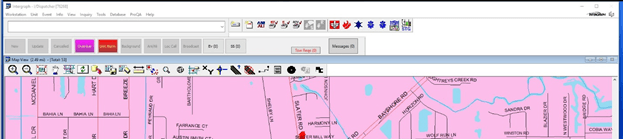
What is the "mainframe window"?
500
The event "History" field in the Event Information Dialog displays this.
The event "History" Previous (Prev) and Next buttons activate when there are updates made to an event. When History shows more than one occurrence of an event, Prev and Next can be used to scroll through the updates.
Think of it as showing the different versions of the event showing how the updates progressed.
500
Function keys are located at the top of the keyboard (F1 through F12). The function keys can be configured to execute a command when selected. These Function Keys are configured to perform these commands.

What is:
[F1] Help
[SHIFT]+[F1] Context Help
[F2] EMD
[SHIFT]+[F2] EFD
[F3] Home (go to command line)
[SHIFT]+[F3] Event Search
[F4] Event Chronology
[F5] Clears (abandon) “Active Event” form
[F6] Read Messages
[F8] Opens New “Create Event” window
[SHIFT]+[F8] Next Dialog/Monitor (similar to Ctrl Tab)
[F9] Recommend Unit Dialog
500
This command is used to reset the event and unit monitors back to their original configuration. The command is helpful when a column within a monitor has been closed due to decreasing the column width.
What is the Reset Monitor command?